The Complete Guide to Running Open-Source LLMs Locally on Your PC
Introduction to Running LLMs Locally
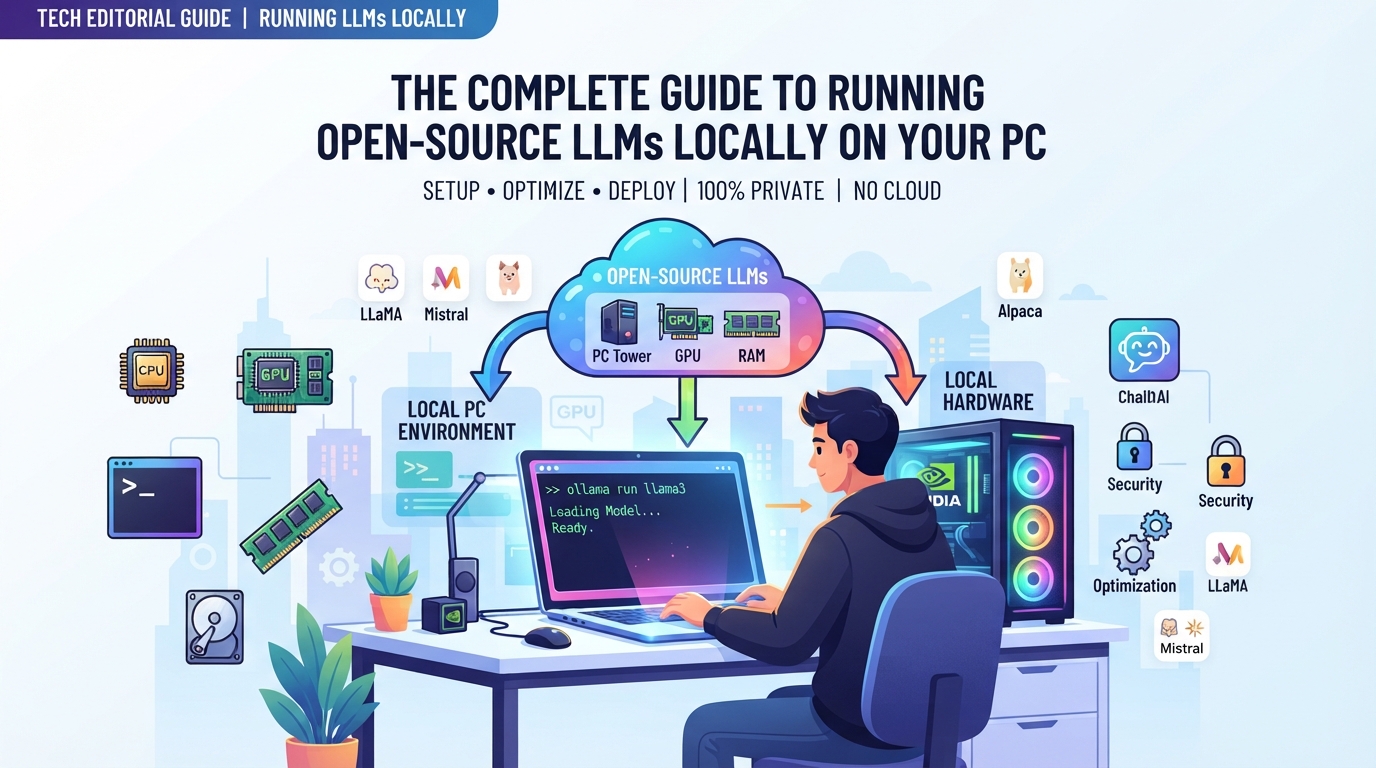
Imagine having the power of advanced AI right on your own computer, completely under your control. When you choose to run open source LLM locally, you bypass the cloud entirely and turn your everyday PC into a private, high-performance workstation.
Why make the switch from hosted services like ChatGPT or Claude? Here is exactly what you gain:
- Data Privacy Local AI: Your sensitive files, private code, and personal prompts never leave your machine.
- Zero API Costs: Say goodbye to monthly subscriptions and unpredictable pay-per-token fees.
- Offline Capabilities: Work seamlessly without an internet connection, whether you are on a flight or off the grid.
- Lower Latency: Enjoy rapid-fire response times by eliminating crowded cloud server queues.
It is the ultimate way to customize your workflow, experiment freely, and keep your proprietary data entirely yours.
Hardware Requirements: Why VRAM is the Ultimate Bottleneck
Your PC’s hardware is the ultimate gatekeeper of your local AI experience. While you can run models on a standard processor, the real magic happens on a dedicated graphics card.
Here is how the two processing powerhouses compare:
- CPU (Central Processing Unit): Handles tasks sequentially. It is highly versatile but painfully slow for AI, resulting in a sluggish, word-by-word output.
- GPU (Graphics Processing Unit): Processes thousands of mathematical operations simultaneously, delivering lightning-fast, real-time responses.
When evaluating local LLM hardware requirements, Video RAM (local LLM VRAM) is the ultimate make-or-break metric. LLMs must be loaded entirely into memory to run efficiently.
If your model size exceeds your available local LLM VRAM, your system spills over into standard system RAM. This bottleneck instantly tanks your generation speeds from a sprint to a crawl. For a smooth experience, VRAM is king.
Model Sizes and Memory Requirements Quick-Reference
To run these models without melting your PC, you need to understand quantization. Think of quantized GGUF models as high-quality MP3s; they compress massive weights into lightweight formats with almost zero loss in intelligence. Specifically, 4-bit quantization reduces the memory footprint by roughly 70%.
Here is your quick-reference cheat sheet for running 4-bit quantized models:
- 7B Models (e.g., Mistral 7B): Requires 6GB–8GB VRAM/RAM. A standard 7B model RAM setup is highly accessible, fitting comfortably on budget gaming laptops.
- 13B Models (e.g., Llama 2 13B): Requires 10GB–12GB VRAM/RAM. This is the sweet spot for balanced speed and reasoning on mid-range GPUs.
- 70B Models (e.g., Llama 3 70B): Requires 40GB–48GB VRAM/RAM. You will need dual GPUs or a specialized workstation setup to run these heavyweights.
Always aim for at least 2GB of headroom beyond these numbers to account for your operating system’s background tasks.

The Two Best Tools for Running Local LLMs
Now that you know your hardware limits, you don’t need a computer science degree to get started. Gone are the days of wrestling with complex Python dependencies, CUDA drivers, or broken environments. Two free tools have revolutionized local AI by packaging everything into simple, one-click installers.
- Ollama (The Minimalist Powerhouse): Running entirely in your command line, Ollama is incredibly lightweight and fast. It operates as a background service, making it the top choice for developers. A quick Ollama tutorial will show you how to spin up models with a single terminal command.
- LM Studio (The Visual Playground): If you prefer a gorgeous, ChatGPT-like desktop interface, this is the gold standard. It features a built-in model registry and easy-to-use hardware acceleration settings. Following an LM Studio guide will have you searching, downloading, and running Hugging Face models visually in under five minutes.
How to Run Models via Terminal with Ollama
If you love the speed of the command line, Ollama is your best friend. This quick Ollama tutorial will get you up and running in less than two minutes.
First, head over to Ollama.com and download the installer for Windows, macOS, or Linux. Once installed, the app runs quietly in the background, ready for your commands.
Next, open your terminal (or Command Prompt) to download and run a Llama 3 local instance. Simply type the following command and hit Enter:
ollama run llama3
Ollama will automatically download the model weights and open an interactive prompt. You can now type your questions and get instant, offline responses.
Try these other popular models using the same method:
- Mistral (7B):
ollama run mistral - Phi-3 (Medium):
ollama run phi3 - Codegemma (Google):
ollama run codegemma
When you are finished chatting, just type /bye to exit the session.
How to Run Models via Graphical Interface with LM Studio
If you prefer a sleek, visual playground over the command line, LM Studio is your best bet. This free app transforms your PC into a private, offline ChatGPT clone with zero coding required.
Here is your quick LM Studio guide to getting started:
1. Download & Install: Grab the installer from lmstudio.ai (available for Windows, Mac, and Linux) and launch the application.
2. Search Hugging Face: Click the search icon on the left sidebar. LM Studio connects directly to Hugging Face, allowing you to search for and download quantized GGUF models like Llama 3 or Mistral.
3. Download and Load: Choose a model size that fits your system’s RAM (look for the green “compatible” tags) and click Download.
4. Start Chatting: Head to the Chat icon on the left menu, select your downloaded model from the top dropdown, and start typing.
You can even customize system prompts and adjust temperature settings in the right-hand panel to instantly fine-tune your local AI’s personality.
Understanding Quantization: GGUF and Model Formats
If you’ve ever tried to load a raw, uncompressed LLM, your computer probably froze. These models are massive because they store data in high-precision 16-bit floats. Quantization is the magic trick that shrinks these files by converting those numbers into smaller 4-bit or 8-bit integers.
This is where quantized GGUF models shine. Developed specifically for consumer hardware, the GGUF format is the gold standard for local setups. Here is why it rules:
- CPU + GPU Split: Unlike other formats, GGUF allows your system to split the processing load dynamically between your system RAM and GPU VRAM.
- The 4-Bit Sweet Spot: Dropping a model from 16-bit to 4-bit cuts your RAM requirements in half, yet retains roughly 95% of the model’s original intelligence.
Essentially, quantization democratizes local AI. It transforms a model that would normally require an expensive, enterprise-grade server into one that runs flawlessly on your everyday laptop.
Conclusion and Next Steps
By taking the plunge to run open source LLM locally, you are reclaiming absolute control over your data, privacy, and development pipeline. No more subscription fees, sudden API changes, or third-party data leaks—just pure, custom AI power running directly on your own hardware.
To keep your system running smoothly over the long haul, implement these quick optimization habits:
- Manage Background Apps: Close RAM-hogging software before launching your local models to free up system memory.
- Prioritize VRAM: Keep your GPU’s VRAM footprint low by disabling hardware acceleration in background browsers and apps.
- Monitor Thermals: Local LLMs push hardware to its limits; ensure your PC has adequate cooling to prevent thermal throttling.
With your environment optimized, you are ready to explore specialized models, build offline agents, and truly own your AI future.